Python editor scripting in Unreal Engine 5.8, for Houdini and Maya TDs
Enable the Python plugin, find where scripts run, and start with three short snippets for selected actors and Content Browser assets.

If you write Python in Houdini or Maya, you already know most of what you need for Unreal. The big difference is where the Python lives: in Unreal it runs in the editor only, not in the game. Epic's docs say you can use it for "scripting and automating the Editor or building asset production pipelines", but not as a gameplay language.
The API names below were checked against the Unreal Python API reference for 5.8. Epic labels that reference as Experimental. We ran the snippets in Unreal Engine 5.8.4 on Oct 27, 2026; see the note at the end.
Turn it on
Python support comes from the Python Editor Script Plugin, and you have to enable it separately for each project:
- Open the project and choose Edit > Plugins.
- In the Scripting section, enable Python Editor Script Plugin.
- Also enable Editor Scripting Utilities, which Epic recommends for its simpler APIs for common editor tasks.
- Restart the editor.
The plugin embeds its own Python, so there is nothing to install. The 5.8 docs give the version as Python 3.11.8, chosen to match the VFX Reference Platform. Check that against your studio packages before you import anything compiled.
Where scripts run
- Output Log. Switch the console input from Cmd to Python and type code straight in, like Houdini's Python Shell. Shift+Enter adds a new line, and
printoutput goes to the Output Log. - The
pycommand. In Cmd mode,py "C:\MyScripts\my_script.py"runs a file. - Tools menu. In 5.8.4 the Python plugin adds Execute Python Script, which browses for a file, and Recent Python Scripts, which re-runs one, to the level editor's Tools menu. The file is read from disk each time, so edits are picked up.
- Startup. A file named
init_unreal.pyin a project's or plugin'sContent/Pythonfolder runs automatically when the editor starts. You can also list scripts under Edit > Project Settings > Plugins > Python > Startup scripts. Those run after the startup level has loaded. - Command line.
UnrealEditor-Cmd.exeaccepts-ExecutePythonScript="..."to run a script in the full editor, or-run=pythonscript -script="..."to run a script as a headless commandlet. The editor shuts down when the script finishes.
Content/Python in your project and Documents/UnrealEngine/Python in your user folder are both on sys.path, so modules you put there can be imported.
Snippet 1: report the selected actors
Level work goes through editor subsystems, which you fetch with unreal.get_editor_subsystem. get_selected_level_actors on EditorActorSubsystem returns the actors selected in the level editor.
import unreal

actors = unreal.get_editor_subsystem(unreal.EditorActorSubsystem)

for actor in actors.get_selected_level_actors():
    unreal.log("{}  {}  {}".format(
        actor.get_actor_label(),
        actor.get_class().get_name(),
actor.get_actor_location()))Use get_actor_label(), not get_name(), if you want the name the Outliner shows. get_name() returns the object name, which is not always the same.
Snippet 2: rename the selection in one undo step
set_actor_label renames an actor. Wrapping the loop in unreal.ScopedEditorTransaction groups the changes into one Undo/Redo entry, as the Python docs describe, so one Ctrl+Z reverts all of them.
import unreal

actors = unreal.get_editor_subsystem(unreal.EditorActorSubsystem)

with unreal.ScopedEditorTransaction("Rename selected rocks"):
    for i, actor in enumerate(actors.get_selected_level_actors()):
actor.set_actor_label("rock_{:03d}".format(i))Snippet 3: list and prefix assets in a folder
unreal.EditorAssetLibrary works on Content Browser paths such as /Game/Props. list_assets returns asset paths, and find_asset_data gives an AssetData with the asset's name, folder and class.
import unreal

eal = unreal.EditorAssetLibrary
folder = "/Game/Props"
prefix = "SM_"

for path in eal.list_assets(folder, recursive=True, include_folder=False):
    data = eal.find_asset_data(path)
    name = str(data.asset_name)
    kind = str(data.asset_class_path.asset_name)
    unreal.log("{}  {}".format(kind, path))

    if kind == "StaticMesh" and not name.startswith(prefix):
        new_path = "{}/{}{}".format(data.package_path, prefix, name)
        if not eal.rename_asset(path, new_path):
unreal.log_warning("Could not rename " + path)Two points, one of them the most important rule in Epic's docs. First, always move and rename assets through the API, never with os.rename or shutil.move. Unreal assets hold internal references that file-level moves will break. Second, rename_asset is a move: the docs say it loads the asset and tries to check the file out of source control. Try it on a small folder first.
Checked against the docs, then run
We ran these snippets in Unreal Engine 5.8.4 on Oct 27, 2026, on a small test project, and they worked as written. One thing to expect from snippet 3: when a level uses a mesh it renames, Unreal leaves a redirector at the old path, and list_assets still returns that path. Every class, method and parameter above was also checked against the Unreal Engine 5.8 Python API reference and the 5.8 "Scripting the Unreal Editor Using Python" page. If something behaves differently in your build, the reference for your engine version is the authority. You can also run help(unreal.EditorActorSubsystem) in the Output Log's Python console.
Further reading
Related
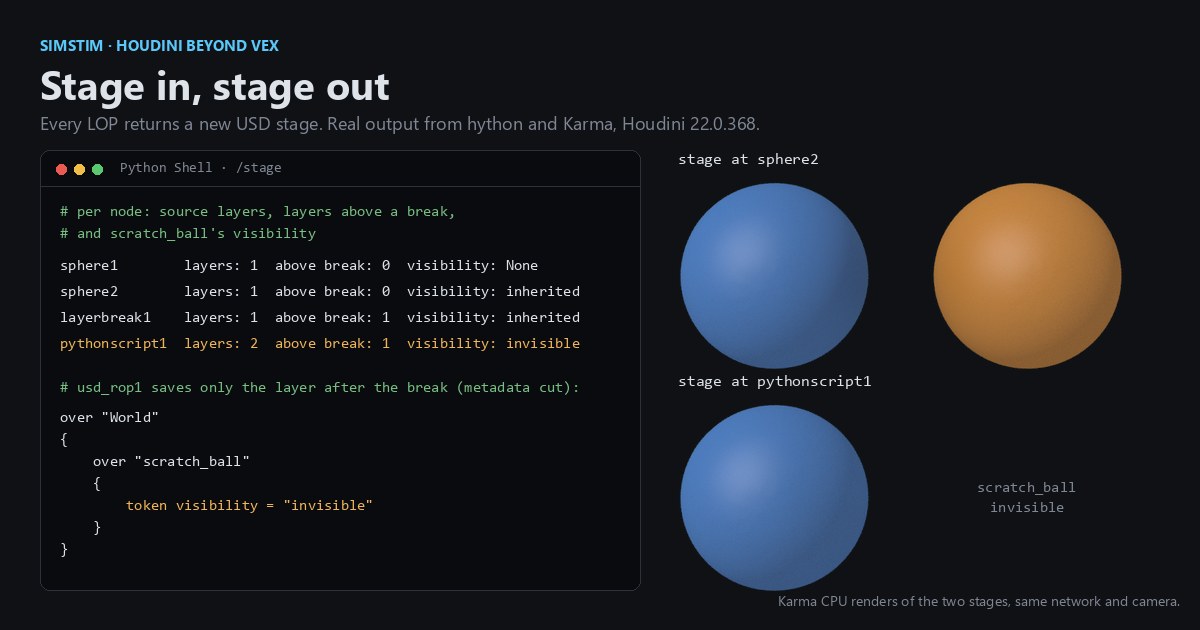 HoudiniStage in, stage out: Houdini's Solaris treats every node as a function over a USD sceneIn Houdini's Solaris, every LOP node takes a composed USD stage and returns one, and its edits land in one in-memory layer at the top. A 31-line usd-core model of that contract, the Python LOP that does it for real, the same network checked in Houdini 22, and why a Layer Break decides what gets saved.
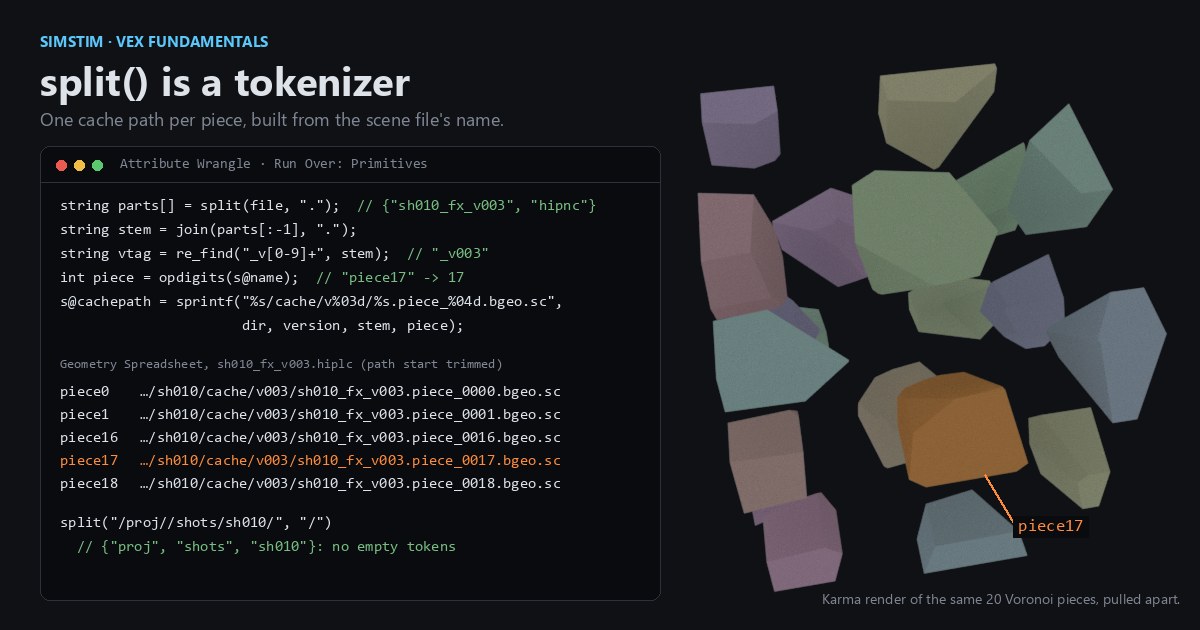 Houdinisplit() is a tokenizer: building cache paths from strings in Houdini VEXVEX strings look like Python's, but split() merges separators and drops empty fields, len() counts bytes, and a wrangle expands $ before the compiler sees it. A per-piece cache path built from the scene file name, and the traps along the way, checked in Houdini 22.
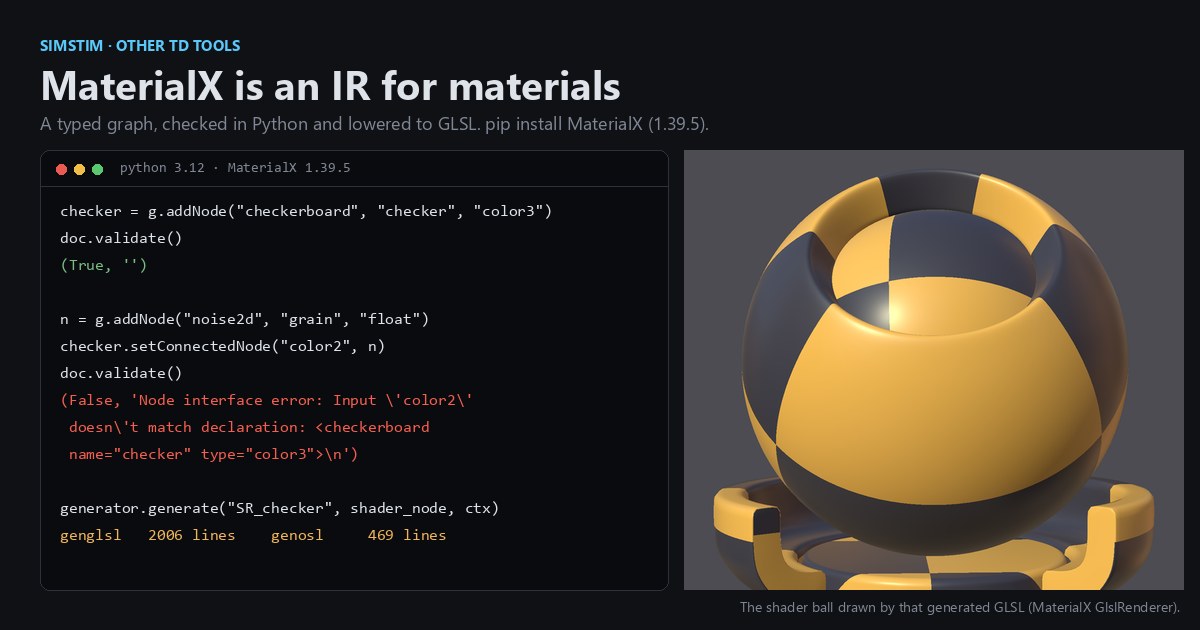 LatestMaterialX is an IR for materials: build a typed shader graph in Python, then lower it to GLSL and OSLA MaterialX material is a typed dataflow graph stored as XML, which a library type-checks and compiles to several shading languages. With only pip install MaterialX, build a checkerboard material in Python, watch the validator reject a float wired into a color, and generate GLSL and OSL from the same file.